

Learn how to add overlays in OBS Studio without cluttering your stream. This guide covers overlay assets, scenes, sources, layout, performance, testing, and clean livestream design.
OBS overlays can make a livestream look more professional, but they should support your content instead of distracting from it. In this guide, I will show you how to prepare, add, organize, and optimize overlays in OBS Studio while keeping your stream clean, readable, and viewer-friendly.
Why OBS Overlays Should Support Your Content
Before I dive into the technical steps, I want to make one thing clear: overlays do not define a skilled livestreamer. When I look at successful creators on platforms like Twitch, YouTube, Kick, and TikTok Live, I notice a common pattern. Most of them keep their layout focused. They use a clean camera frame, readable alerts, a few useful widgets, and leave enough space for the actual content.
A good overlay should make your stream easier to understand, not harder to watch. If a viewer cannot see the gameplay, presentation, chat content, or main visual area because the screen is covered with graphics, the overlay is working against you.
My advice is simple: keep your screen uncluttered and focus on the value you bring to your audience. Your personality, commentary, gameplay, teaching, reactions, and consistency matter more than decorative graphics.
A professional stream layout is not the one with the most overlays. It is the one where every visual element has a clear purpose.
What Are OBS Overlays?
In OBS Studio, overlays are visual elements placed on top of your main content. They can be static images, animated videos, browser widgets, webcam frames, alert boxes, stream labels, sponsor graphics, countdown timers, chat boxes, lower thirds, or custom branding elements.
Overlays are added as sources inside OBS scenes. Because OBS uses a layered source system, each overlay can be positioned, resized, cropped, hidden, shown, filtered, or reordered independently.
Common overlay types include:
- Webcam frames: Borders or layouts around your camera.
- Alert boxes: Notifications for follows, subs, tips, or raids.
- Stream labels: Text showing recent followers, donors, or goals.
- Chat boxes: Live chat displayed on-screen.
- Starting soon screens: Intro layouts before the stream begins.
- BRB screens: Break screens when you step away.
- Ending screens: Outro layouts before ending the broadcast.
- Lower thirds: Nameplates, titles, or topic labels.
- Sponsor graphics: Branded placements or campaign visuals.
The best overlay setup depends on your content type. A gaming stream may need a webcam frame and alerts, while a tutorial stream may need a clean lower third and readable screen capture area. A podcast may need guest name labels and audio indicators.
1. Prepare Your Overlay Elements
Before opening OBS Studio, I always prepare my overlay assets first. This saves time and prevents messy source management later.
Overlay assets can include:
- PNG images with transparent backgrounds
- JPEG background screens
- WebP or AVIF images for optimized file size
- MP4 or WebM animated overlays
- Animated GIFs
- Browser-based widgets
- HTML/CSS custom overlays
When designing overlays, I make sure they match my stream canvas resolution. If I stream at 1920x1080, I design my full-screen overlays at 1920x1080. If I stream at 1280x720, I prepare 720p assets. This avoids blurry scaling, stretched graphics, and misaligned elements.
I also organize assets into folders before importing them into OBS. A simple structure might look like this:
stream-assets/
  starting-soon/
  gameplay/
  webcam-frame/
  alerts/
  brb/
  ending/
  sponsors/
  sounds/
This makes it easier to update assets later. If your overlay files are spread across downloads, desktop folders, and random project locations, OBS scenes become harder to maintain.
If I need design inspiration, I sometimes explore platforms such as Behance to study layout ideas. I do not recommend copying someone else's branding, but it can help you understand spacing, balance, typography, and visual hierarchy.
2. Choose the Right Overlay Style for Your Stream
Overlay style should match your content and audience. A competitive FPS stream usually needs a minimal layout because viewers need to see important gameplay information. A cozy chatting stream can use softer decorative elements. A tutorial or educational stream should prioritize readability and screen space.
Before adding overlays, I ask myself:
- Does this element help the viewer?
- Does it block important content?
- Is the text readable on mobile?
- Does it match my stream branding?
- Will it affect OBS performance?
- Can I remove it without losing anything important?
If an overlay does not answer a real viewer need, I usually remove it. Clean design improves watchability and makes the stream feel more professional.
3. Create the Scenes in OBS Studio
Scenes are the foundation of an organized OBS setup. Instead of placing every source into one giant scene, I prefer separating the stream into logical sections.
For a basic stream setup, I usually create at least these scenes:
- Stream Starting Soon
- Main Gameplay
- Be Right Back
- Ending Screen
Depending on the stream, I may also add:
- Just Chatting
- Full Webcam
- Screen Share
- Interview
- Podcast Layout
- Technical Difficulties
To create a new scene in OBS Studio:
- Right-click inside the Scenes panel.
- Select Add.
- Enter a clear scene name.
- Click OK.
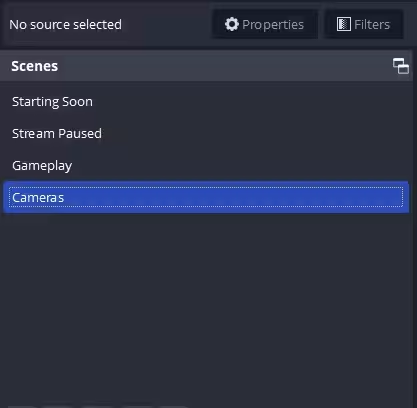
Clear scene names make stream management easier. Instead of names like Scene 1 or Test 2, I use descriptive names that match their purpose.
4. Add Overlay Sources
In OBS Studio, overlays are added as sources inside each scene. This modular system gives full control over layout, visibility, filters, and source order.
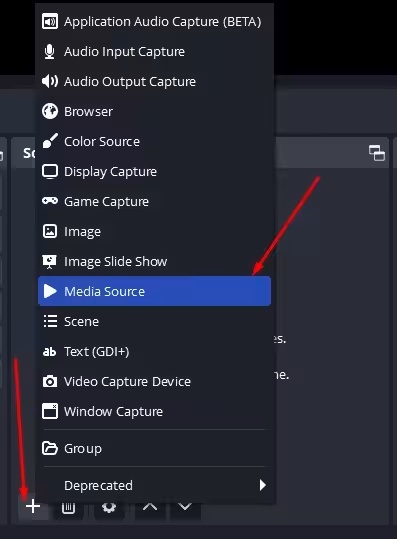
To add an overlay source:
- Select the scene where the overlay should appear.
- Right-click inside the Sources panel.
- Click Add.
- Choose the correct source type.
- Select or configure the overlay asset.
- Resize and position it in the preview window.
Common source types include:
- Image: Best for PNG, JPEG, WebP, or static overlay graphics.
- Media Source: Best for MP4, WebM, and animated video overlays.
- Browser Source: Best for alert boxes, chat widgets, labels, and HTML overlays.
- Text: Useful for simple labels, stream titles, or manual messages.
- Color Source: Useful for background blocks or layout panels.
After adding a source, I resize it by dragging the corners in the preview area. Dragging from a corner keeps the proportions intact. Holding Shift allows stretching, but I avoid stretching unless I intentionally need a non-proportional adjustment.
5. Arrange and Customize Your Overlays
Layer order is critical in OBS Studio. Sources at the top of the Sources list appear above sources below them. If your webcam frame is hidden behind gameplay footage, drag the webcam frame higher in the list.
A typical gameplay scene order might look like this:
Alerts
Webcam Frame
Webcam
Chat Widget
Gameplay Capture
Background
The correct order depends on your layout, but the main idea is simple: important foreground elements should sit above background elements.
To refine a source, right-click it and select Filters. Useful OBS filters include:
- Color Correction: Adjust brightness, contrast, saturation, and opacity.
- Chroma Key: Remove green screen backgrounds from webcam footage.
- Crop/Pad: Trim edges or adjust framing.
- Image Mask/Blend: Create rounded camera shapes or custom masks.
- Gain: Adjust audio level.
- Compressor: Smooth out microphone volume.
- Limiter: Prevent audio from peaking too loudly.
A clean hierarchy and subtle visual adjustments usually improve a stream more than adding extra graphics.
6. Use Browser Sources for Alerts and Widgets
Browser sources are one of the most flexible overlay tools in OBS Studio. They allow you to display web-based content directly inside your scene. This is how most alert boxes, stream labels, donation goals, chat boxes, and custom widgets are added.
To add a browser source:
- Right-click inside the Sources panel.
- Select Add → Browser.
- Name the source clearly.
- Paste the widget URL.
- Set width and height to match the overlay area.
- Click OK.
Browser sources are powerful, but they can also consume CPU or memory, especially if they contain animations, scripts, or frequent updates. I only use browser widgets that provide real value to the stream.
7. Optimize Overlay Performance
Overlays can affect stream performance. Large animated files, too many browser sources, unoptimized videos, and high-resolution graphics can increase CPU, GPU, or memory usage.
To keep OBS running smoothly, I follow these rules:
- Use the same resolution as your OBS canvas for full-screen overlays.
- Compress image files when possible.
- Use MP4 or WebM for animations instead of heavy GIFs.
- Remove unused sources from scenes.
- Avoid running too many browser widgets at once.
- Loop only the media sources that need to loop.
- Monitor OBS stats during test recordings.
A stream that looks slightly simpler but runs smoothly is better than a flashy stream with dropped frames and lag.
8. Keep Text Readable on Mobile Devices
Many viewers watch livestreams on phones. This means overlay text must be readable even on small screens. Thin fonts, tiny labels, and low-contrast colors may look fine on your monitor but become unreadable on mobile.
I recommend checking your stream preview on a phone before finalizing your layout. Pay attention to:
- Font size
- Text contrast
- Alert readability
- Chat box size
- Webcam placement
- Important gameplay UI elements
If viewers cannot read your overlay, it does not matter how good the design looks in OBS.
9. Preview Your Scene Before Going Live
Before starting a live stream or recording, I always double-check the layout. A few minutes of testing can prevent awkward fixes during the broadcast.
My pre-stream overlay checklist includes:
- Overlay alignment
- Text readability
- Webcam position
- Alert box location
- Chat box visibility
- Audio levels
- Scene transitions
- Browser source loading
- CPU and GPU usage
OBS Studio allows me to preview changes before going live. If Studio Mode is enabled, I can prepare a scene in preview before transitioning it to the live program output.
10. Start Streaming or Recording
Once everything looks correct, I click Start Streaming or Start Recording in the main OBS window. At this point, all overlays become part of the final output seen by viewers.
During the first few minutes, I keep an eye on the OBS status bar and stats window. If overlays are too heavy, I may notice dropped frames, rendering lag, encoding lag, or high resource usage.
If performance is unstable, I simplify the layout before increasing bitrate or changing unrelated settings. Heavy overlays can create problems even on a good internet connection.
11. Monitor and Adjust During the Stream
Even after going live, I remain flexible. If I notice that an overlay blocks important gameplay elements or distracts from the content, I adjust it between scenes or after the stream.
I avoid making major layout changes live unless absolutely necessary. It is better to take notes during the broadcast and improve the layout afterward.
Useful questions after a stream include:
- Did viewers mention anything about readability?
- Were alerts visible but not disruptive?
- Did the webcam cover important content?
- Did browser sources load correctly?
- Did OBS performance remain stable?
- Can any overlay element be removed?
Streaming is iterative. I refine my layout over time based on viewer feedback, analytics, recordings, and my own review.
Common OBS Overlay Mistakes
Many beginners add too many visual elements because they want the stream to look professional. Unfortunately, this often has the opposite effect.
Using Too Many Animated Elements
Animated alerts, moving backgrounds, looping frames, particle effects, and widgets can quickly overwhelm the viewer. They can also increase system load. Animation should guide attention, not constantly compete for it.
Blocking Important Content
In games, overlays can cover health bars, minimaps, ammo counters, objectives, subtitles, or inventory areas. Always test overlays with the actual game or content you plan to stream.
Unreadable Text
Small text, low contrast, and overly decorative fonts reduce readability. Use clear fonts and enough contrast for viewers on different screen sizes.
Inconsistent Branding
Mixing too many colors, styles, fonts, and graphic packs can make the stream feel messy. Choose a consistent visual direction and reuse it across scenes.
Ignoring Performance
A beautiful overlay is not worth it if OBS starts lagging. Performance should always come before decoration.
Best Practices for Clean OBS Overlay Design
- Keep the main content area clear.
- Use overlays only where they add value.
- Design at your actual stream resolution.
- Use transparent PNGs for static overlay elements.
- Use optimized MP4 or WebM files for animations.
- Keep fonts readable and consistent.
- Test layouts on desktop and mobile.
- Use separate scenes for different stream states.
- Name sources clearly inside OBS.
- Remove unused sources and widgets.
- Monitor performance after adding new overlays.
Final Thoughts on OBS Overlays
Adding overlays in OBS Studio is technically simple, but designing an effective stream layout requires restraint and intention. In my experience, clarity beats complexity. A well-placed webcam frame, subtle alerts, clean branding, and a readable layout are usually enough to create a professional livestream.
If you focus on delivering valuable content and maintaining a distraction-free layout, overlays will enhance your stream instead of defining it. OBS Studio gives you the tools, but the real difference comes from how thoughtfully you use them.
Start with a simple layout, test it, review your recordings, and improve it gradually. The best overlay setup is not the one with the most effects. It is the one that helps viewers enjoy your content without getting in the way. See also OBS Studio tools and streaming overlays and scenes for related resources.


